Explore Okahu Cloud with a demo app
Use Okahu to debug, test and observe your agentic, RAG and other LLM based apps. Get started using Okahu with a demo app with telemetry data to explore how Okahu helps you build more reliable agents.
Get your Okahu AI Observability Cloud account
-
Browse to Okahu Portal at
https://portal.okahu.co -
Select
Get Startedto navigate to the login page.Click
Get Startedto sign up or to login to the Okahu Portal
-
Select
GithuborLinkedInas a login option to create an Okahu Cloud account and authenticate for subsequent login to Okahu Portal.To get a Free Okahu Cloud, on first login you will need to (a) approve the use of
GithuborLinkedInto authenticate and (b) accept the terms of service to use the Okahu Cloud account.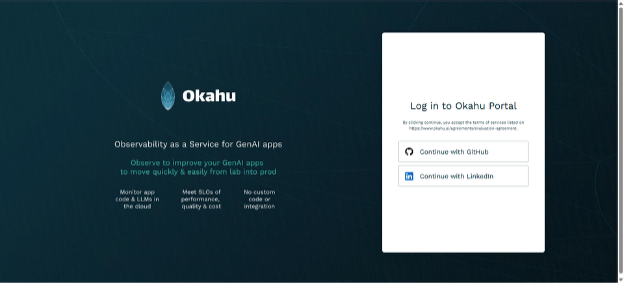
-
Upon successful login, you will land on the
Applicationspage of theOkahu Portalwith a demo example for you to explore.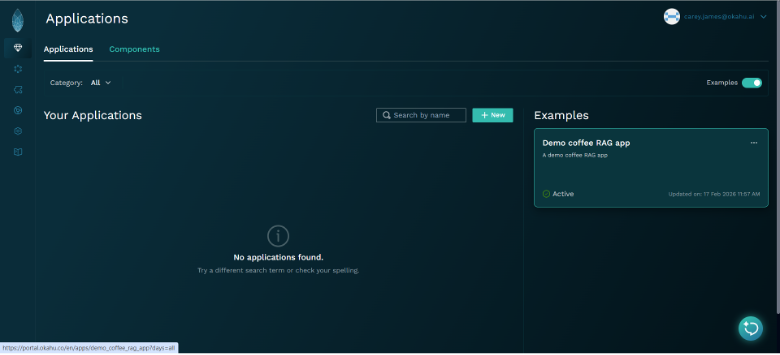
Find issues with your app using pre-built insights
-
Click on the
Demo Coffee RAG appunder the Examples section on the Applications page to navigate to insights of the demo app.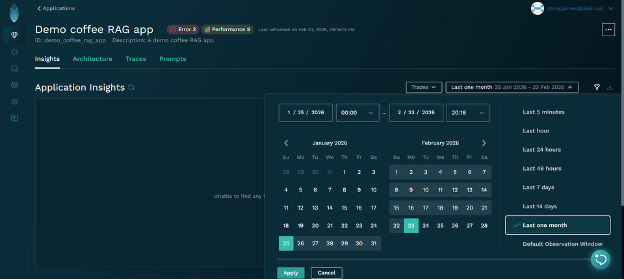
-
Set the timebox to the
last monthto use sufficient telemetry data from the demo app to generate the Insights.
a. Open the timebox selector b. Select theLast one monthoption c. Click Apply -
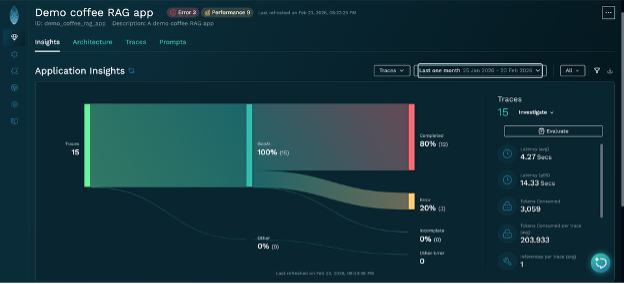
You will see the breakdown of what happened in your app from traces captured in the selected timebox.
In the example below, there were 15 traces captured which all involved an LLM call and 3 of those contained an error.
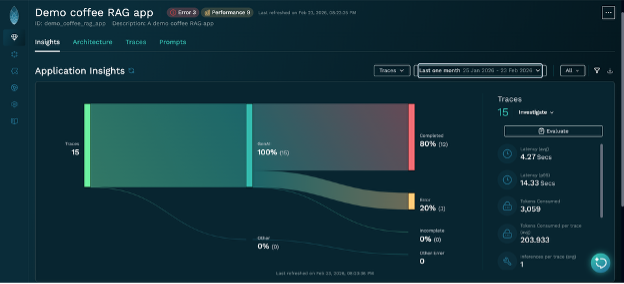
Any issues such as errors, performance, test failures or more in the selected timebox are also flagged with a label at the top to make it easy to identify if there is an issue and if you want to drill down further.
-
You can explore what happened in your app using
Insightsdrills downs and other views of telemetry or askKahufor help from the icon on the bottom right.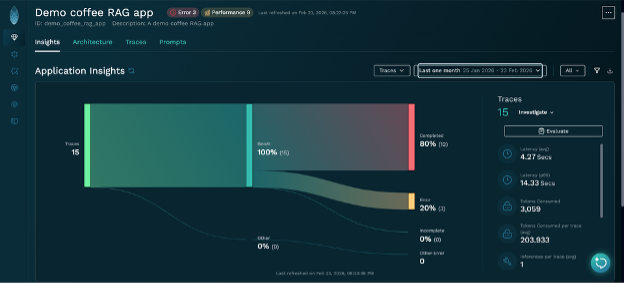
Find issues with your app using Kahu - the Okahu Debug agent
-
Click Ask Now button to start a conversation with
Kahu.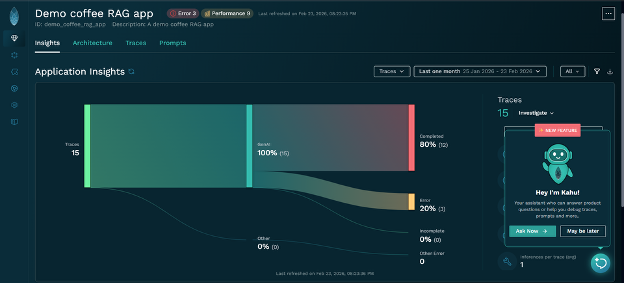
-
As an example, investigate issues in the demo app with the following question to
KahuAnalyze the errors for the demo_coffee_rag_app and provide insights into the root cause
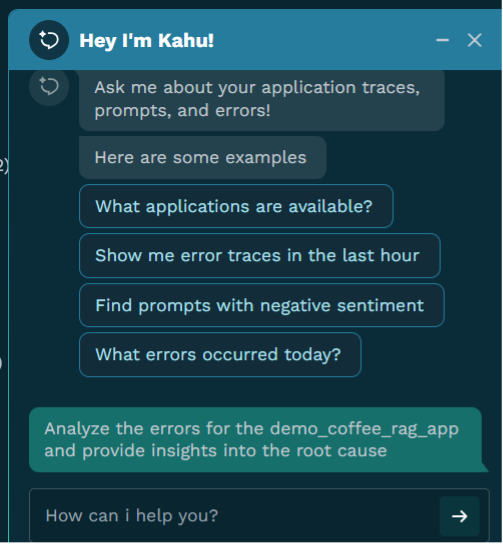
Kahushould return a summary based on its analysis:
The primary error observed in the demo_coffee_rag_app is APITimeoutError: Request Timed Out, which has occurred 3 times.
    Insights into the root cause:
    This error indicates that the application is making a request to an external API or service, and that request is not completing within the allotted time. Possible root causes include:

    1.  Slow API Response: The external API or service that demo_coffee_rag_app is calling might be experiencing high latency or performance issues, causing it to respond slowly.

    2.  Network Issues: There could be network congestion, high latency, or connectivity problems between the demo_coffee_rag_app and the external service.

    3.  Insufficient Timeout Configuration: The timeout setting within the demo_coffee_rag_app for these API calls might be too aggressive or not adequately configured for the expected response times of the external service.

    4.  External Service Overload: The external service might be under heavy load, leading to delays in processing requests and subsequent timeouts for the demo_coffee_rag_app.

     To further diagnose the exact cause, you could investigate the spans of one of the sample traces provided (e.g., 0x31c843ca0c50b85e28d0574d918ea3d7) to identify the specific API call that is timing out.
-
As an example, if you are interested in finding out the impact of a particular type of issues, you could ask
Kahuthe following questionanalyze the spans for all of the traces with errors and return the API call that is timing out for each Trace
Kahushould return a summary based on its analysis:
Here's an analysis of the spans for each of the error traces, identifying the API call that is timing out:
    Trace ID: 0x31c843ca0c50b85e28d0574d918ea3d7
    •   API Call Timing Out: openai.resources.chat.completions.completions.Completions
    •   Context: This timeout occurs within the llama_index.llms.azure_openai.base.AzureOpenAI span, which is part of the llama_index.core.query_engine.retriever_query_engine.RetrieverQueryEngine workflow. This indicates that the application is failing to get a response from the OpenAI API (likely via Azure OpenAI) when attempting to generate chat completions.

    Trace ID: 0x92c0219e92cabc6ce8a7272eaaff9c8a
    •   API Call Timing Out: openai.resources.chat.completions.completions.Completions
    •   Context: Similar to the first trace, the timeout is observed during calls to the openai.resources.chat.completions.completions.Completions API within the llama_index.llms.azure_openai.base.AzureOpenAI component, which is part of the llama_index.core.query_engine.retriever_query_engine.RetrieverQueryEngine workflow.

    Trace ID: 0xfde867251511ecf744ef963339fa7d41
    •   API Call Timing Out: openai.resources.chat.completions.completions.Completions
    •   Context: Consistently, this trace also shows timeouts when calling the openai.resources.chat.completions.completions.Completions API, originating from the llama_index.llms.azure_openai.base.AzureOpenAI span within the llama_index.core.query_engine.retriever_query_engine.RetrieverQueryEngine workflow.

    Summary of Findings:
    Across all three error traces, the root cause of the APITimeoutError is consistently identified as a timeout during calls to the OpenAI Chat Completions API (openai.resources.chat.completions.completions.Completions). This interaction happens within the llama_index.llms.azure_openai.base.AzureOpenAI component, suggesting that the demo_coffee_rag_app is using Azure OpenAI services through the LlamaIndex framework, and these calls are not receiving a response within the configured timeout period.
    Potential next steps for investigation:
    •   Check Azure OpenAI Service Status: Verify if there are any ongoing incidents or performance issues with the Azure OpenAI service in the region where the application is deployed.
    •   Review API Latency: Monitor the actual latency of calls to the OpenAI API from the application's environment to determine if they consistently exceed the configured timeout.
    •   Adjust Timeout Settings: If the API is generally responsive but occasionally slow, consider increasing the timeout duration in the application's configuration for the OpenAI API calls.
    •   Network Connectivity: Investigate network connectivity and potential bottlenecks between the application's hosting environment and the Azure OpenAI endpoint.
    •   API Rate Limits: Check if the application is hitting any rate limits imposed by the Azure OpenAI service, which could lead to delayed responses and subsequent timeouts.
Next Step - instrument and observe your app to find and fix issues in your agent
Okahu makes it easy to find and fix issues in your app using telemetry-driven debugging
a. Okahu builds a context graph of telemetry data for more meaningful results Okahu didn't just report an error code; it automatically discovered the relationship between the high-level RetrieverQueryEngine and the low-level AzureOpenAI call. This spared you from manually digging through logs to trace the path from a failed query to a specific API endpoint.
b. Okahu follows the chain of events to find the real root cause By correlating observations across different components—in this case, LlamaIndex, Azure, and OpenAI—Okahu provided a unified understanding that the timeout was external, not a bug in your application logic.
c. Okahu makes it easy to do interative investigations in natural language Instead of requiring you to write complex queries to find "all traces with errors," you were able to use a natural language prompt. The platform's Kahu Agent summarized the findings into a "causal narrative" rather than a raw data dump.
